Share this course’s details with your family and friends.

Adobe Illustrator Training
Adobe Illustrator Training in Bangalore Offered by myTectra is the most powerful Adobe Illustrator Training ever offered with Top Quality Trainers, Best Price, Certification, and 24/7 Customer Care. Learn Virtually Anywhere. Get Started Adobe Illustrator Online Training Now!
20% Limited Time Offer
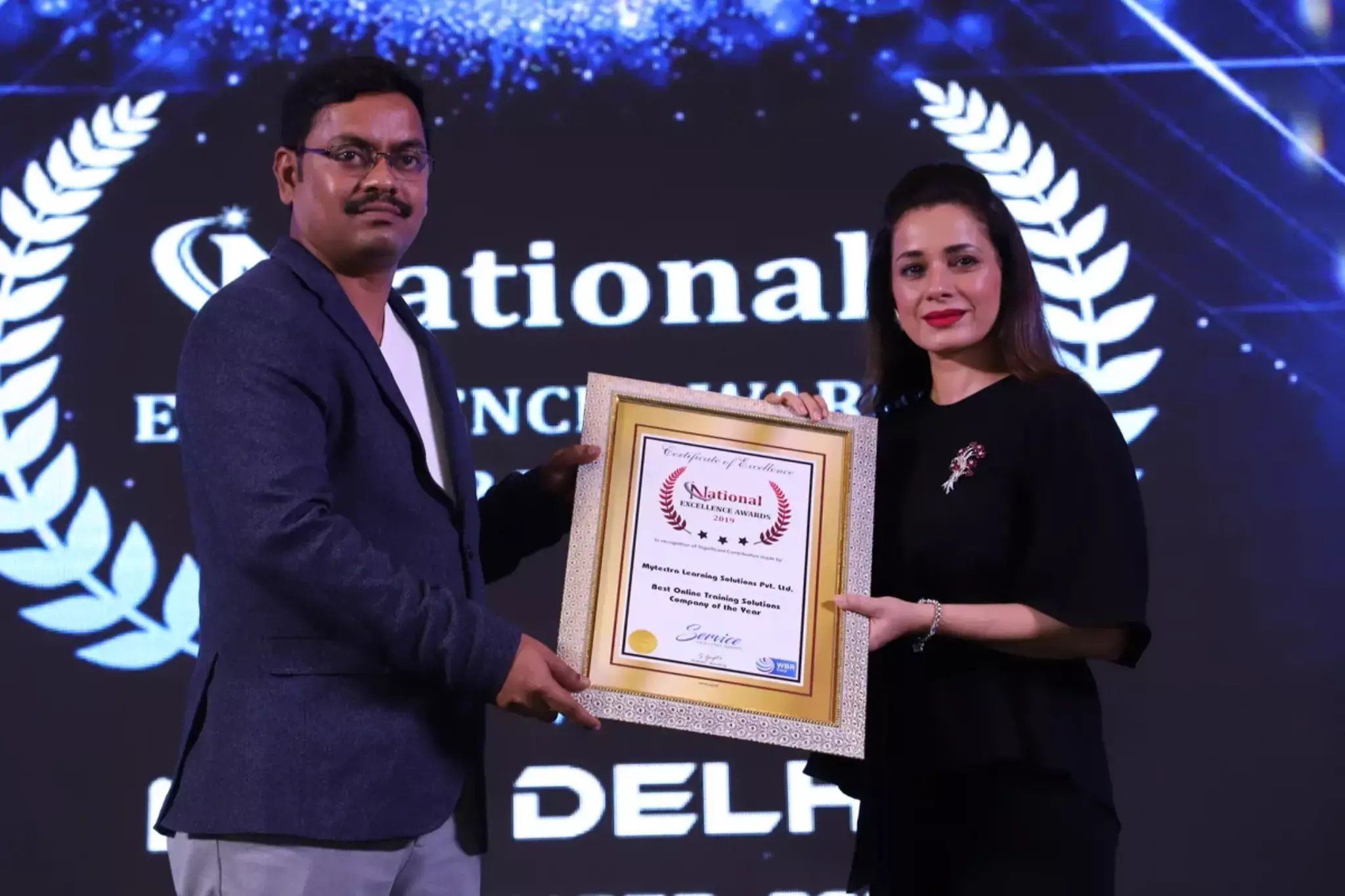
Learn Virtually Anywhere. Award-Winning Training Company.
High-Quality Training Awaits You
Join over 100000+ learners who have taken up training with myTectra. Get High-Quality Training, Certification, Best Price and 24/7 Customer Care.
Key Program Highlights:
- Delivering top-notch education to equip you with essential skills.
- Learn from industry experts with real-world experience.
- A thorough curriculum covering all necessary topics.
- Dedicated support to help you secure job placements.
- High ratings reflecting our commitment to quality.
- Hands-on experience through real-world projects.
- Personalized, engaging learning for better outcomes.
About Program
This comprehensive course offered by myTectra is your gateway to mastering Adobe Illustrator, the industry-leading software for vector graphics creation. Tailored for both beginners and experienced designers, our program delves into every aspect of Illustrator, from navigating the interface to mastering advanced techniques. Through hands-on exercises and real-world projects, you'll unlock the full potential of Illustrator, empowering you to create captivating illustrations and designs with confidence and proficiency. Join us on this transformative journey and elevate your graphic design skills with Adobe Illustrator.
Curriculum:
Getting To Know The Work Area
- Introducing Adobe Illustrator
- Starting Illustrator and opening a file
- Exploring the workspace
- Getting to know the Tools panel
- Working with the Control panel
- Working with panels
- Working with panel groups
- Resetting and saving your workspace
- Using panel menus
- Changing the view of the artwork
- Using view commands
- Using the Zoom tool
- Scrolling through a document
- Viewing artwork
- Navigating artboards
- Using the Artboards panel
Techniques For Selecting Artwork
- Starting the lesson
- Selecting objects
- Using the Selection tool
- Using the Direct Selection tool
- Creating selections with a marquee
- Hiding and locking objects
- Selecting similar objects
- Selecting in Outline mode
- Aligning objects
- Aligning objects to each other
- Aligning to a key object
- Aligning anchor points
- Distributing objects
- Aligning to the artboard
- Working with groups
- Grouping items
- Editing a group in Isolation mode
- Creating a nested group
- Exploring object arrangement
- Arranging objects
- Selecting objects behind
Using Shapes To Create Artwork For A Postcard
- Starting the lesson
- Creating a new document
- Working with basic shapes
- Creating and editing rectangles
- Rounding corners
- Working with the Rounded Rectangle tool
- Creating and editing an ellipse
- Creating and editing a circle
- Creating a polygon
- Editing a polygon
- Changing stroke width and alignment
- Drawing lines
- Creating a star
- Working with the Shaper tool
- Drawing shapes with the Shaper tool
- Editing shapes with the Shaper tool
- Punching shapes with the Shaper tool
- Combining shapes with the Shaper tool
- Working with drawing modes
- Working with Draw Behind mode
- Using the Draw Inside mode
- Using Image Trace
Editing And Combining Shapes And Paths
- Starting the lesson
- Editing paths and shapes
- Cutting with the Scissors tool
- Joining paths
- Cutting with the Knife tool
- Using the Eraser tool
- Combining shapes
- Working with the Shape Builder tool
- Working with the Pathfinder panel
- Creating a compound path
- Using the Width tool
- Outlining strokes
- Finishing up the illustration
- Starting the lesson
- Working with artboards
- Adding artboards to the document
- Editing artboards
- Renaming artboards
- Reordering artboards
- Working with rulers and guides
- Creating guides
- Editing the ruler origin
- Transforming content
- Positioning artwork using the Transform panel
- Positioning artwork using Smart Guides
- Scaling objects
- Reflecting objects
- Rotating objects
- Distorting objects with effects
- Shearing objects
- Transforming with the Free Transform tool
- Creating a PDF
Transforming Artwork
Creating An Illustration With The Drawing Tools
- Starting the lesson
- An intro to drawing with the Pen tool
- Selecting paths
- Drawing straight lines with the Pen tool
- Introducing curved paths
- Drawing a curve with the Pen tool
- Drawing a series of curves with the Pen tool
- Converting smooth points to corner points
- Combining curves and straight lines
- Creating artwork with the Pen tool
- Drawing a coffee cup
- Drawing with the Curvature tool
- Editing curves
- Reflecting the spoon shape
- Rounding corner points
- Editing paths and points
- Deleting and adding anchor points
- Converting between smooth points and corner points
- Working with the Anchor Point tool
- Creating a dashed line
- Adding arrowheads to a path
- Working with the Pencil tool
- Drawing freeform paths with the Pencil tool
- Drawing straight segments with the Pencil tool
- Joining with the Join tool
Using Color To Enhance Signage
- Starting the lesson
- Exploring colour modes
- Working with colour
- Applying an existing colour
- Creating a custom colour using the Color panel
- Saving a colour as a swatch
- Creating a copy of a swatch
- Editing a swatch
- Creating and editing a global swatch
- Using the Color Picker to create colour
- Using Illustrator swatch libraries
- Adding a spot colour
- Creating and saving a tint of a colour
- Converting colours
- Copying appearance attributes
- Creating a colour group
- Creative inspiration with the Color
- Guide panel
- Editing a colour group in the Edit Colors dialogue box
- Editing colours in the artwork
- Assigning colours to your artwork
- Working with Live Paint
- Creating a Live Paint group
- Painting with the Live Paint Bucket tool
- Modifying a Live Paint group
Adding Type To A Poster
- Starting the lesson
- Adding type to the poster
- Adding text at a point
- Adding area type
- Working with Auto Sizing
- Converting between area and point type
- Importing a plain-text file
- Threading text
- Formatting type
- Changing font family and font style
- Fixing missing fonts
- Changing font size
- Changing font colour
- Changing additional character formatting
- Working with Glyphs
- Changing paragraph formatting
- Modifying text with the Touch Type tool
- Resizing and reshaping type objects
- Creating columns of text
- Creating and applying text styles
- Creating and applying a paragraph style
- Editing a paragraph style
- Creating and applying a character style
- Editing a character style
- Sampling text formatting
- Wrapping text
- Reshaping text with a preset envelope warp
- Editing the envelope warp
- Working with type on a path
- Creating type on a path
- Creating type on a closed path
- Creating text outlines
Organizing Your Artwork With Layers
- Starting the lesson
- Understanding layers
- Creating layers and sublayers
- Creating new layers
- Creating sublayers
- Editing layers and objects
- Locating layers
- Moving content between layers
- Viewing layers
- Reordering layers
- Collecting into a new layer
- Duplicating layer content
- Pasting layers
- Changing layer order
- Applying appearance attributes to layers
- Creating a clipping mask
Gradients, Blends, And Patterns
- Starting the lesson
- Working with gradients
- Applying a linear gradient to a fill
- Editing/Saving a gradient
- Adjusting a linear gradient fill
- Applying a linear gradient to a stroke
- Editing a gradient on a stroke
- Applying a radial gradient to artwork
- Editing the colors in the radial gradient
- Adjusting the radial gradient
- Applying gradients to multiple objects
- Adding transparency to gradients
- Working with blended objects
- Creating a blend with specified steps
- Modifying a blend
- Creating and editing a smooth color blend
- Painting with patterns
- Applying an existing pattern
- Creating your own pattern
- Applying your pattern
- Editing your pattern
Using Brushes To Create A Poster
- Starting the lesson
- Working with brushes
- Using Calligraphic brushes
- Applying a Calligraphic brush to artwork
- Drawing with the Paintbrush tool
- Editing paths with the Paintbrush tool
- Editing a brush
- Removing a brush stroke
- Using Art brushes
- Applying an existing Art brush
- Creating an Art brush using a raster image
- Editing an Art brush
- Using Bristle brushes
- Changing Bristle brush options
- Painting with a Bristle brush
- Using Pattern brushes.
- Creating a Pattern brush
- Applying a Pattern brush
- Editing the pattern brush
- Working with the Blob Brush tool
- Drawing with the Blob Brush tool
- Merging paths with the Blob Brush tool
- Editing with the Eraser tool
Exploring Creative Uses Of Effects And Graphic Styles
- Starting the lesson
- Using the Appearance panel
- Editing appearance attributes
- Adding another stroke and fill to artwork
- Adding another stroke and fill to text
- Reordering appearance attributes
- Using live effects
- Applying an effect
- Editing an effect
- Styling text with a Warp effect
- Editing text with a Warp effect
- Applying the Offset Path effect
- Applying a Photoshop Effect
- Working with 3D effects
- Using graphic styles
- Applying an existing graphic style
- Creating and applying a graphic style
- Updating a graphic style
- Applying a graphic style to a layer
- Scaling strokes and effects
Creating Artwork For A T-shirt
- Starting the lesson
- Working with symbols
- Using existing Illustrator symbol libraries
- Editing a symbol
- Working with dynamic symbols
- Creating a symbol
- Duplicating symbols
- Replacing symbols
- Breaking a link to a symbol
- Working with Creative Cloud Libraries
- Adding assets to CC Libraries
- Using Library assets
- Updating a Library asset
- Working with the perspective grid
- Using a preset grid
- Adjusting the perspective grid
- Drawing artwork in perspective
- Selecting and transforming objects in perspective
- Moving planes and objects together
- Drawing artwork with no active grid
- Adding and editing text in perspective
- Moving objects in a perpendicular direction
- Moving a plane to match an object
- Bringing content into perspective
- Editing symbols in perspective
- Releasing objects with perspective
- Finishing up
Using Illustrator Cc With Other Adobe Applications
- Starting the lesson
- Combining artwork
- Placing image files
- Placing an image
- Scaling a placed image
- Placing a Photoshop image with Show Import Options
- Placing multiple images
- Applying colour edits to an image
- Masking images
- Applying a simple mask to an image
- Editing a clipping path (mask)
- Masking an object with text
- Creating an opacity mask
- Editing an opacity mask
- Sampling colors in placed images
- Working with image links
- Finding link information
- Embedding and unembedding images
- Replacing a linked image
- Packaging a file
Exporting Assets
- Starting the lesson
- Creating Pixel-Perfect Drawings
- Aligning new artwork to the pixel grid
- Aligning existing artwork to the pixel grid
- Exporting artboards and assets
- Exporting artboards
- Exporting individual assets
- Creating CSS from your design
- Setting up your design for generating CSS
- Working with character styles and CSS code
- Working with graphic styles and CSS code
- Copying CSS
- Exporting CSS
Join the Course Now!
Learning Path
Master new skills to achieve your career goals.
Demo Session
Participate in a demo session for an overview of the course content. You will meet instructors and fellow learners, ask questions, and understand the teaching approach, helping you gauge the course’s relevance to your goals.
Enrollment
Complete your registration to join the course. You will gain access to the Learning Management System (LMS), where all materials, schedules, and resources are available, ensuring you’re ready to embark on your learning journey smoothly.
Live Classes
Engage in live classes led by experienced instructors covering core topics in depth. Interactive discussions and Q&A sessions encourage active participation, enhancing your understanding and retention of the material taught.
Hands-On Project
Complete a hands-on project that applies your learned skills in practical scenarios. This project simulates real-world challenges, allowing you to build a portfolio piece that showcases your competencies to potential employers.
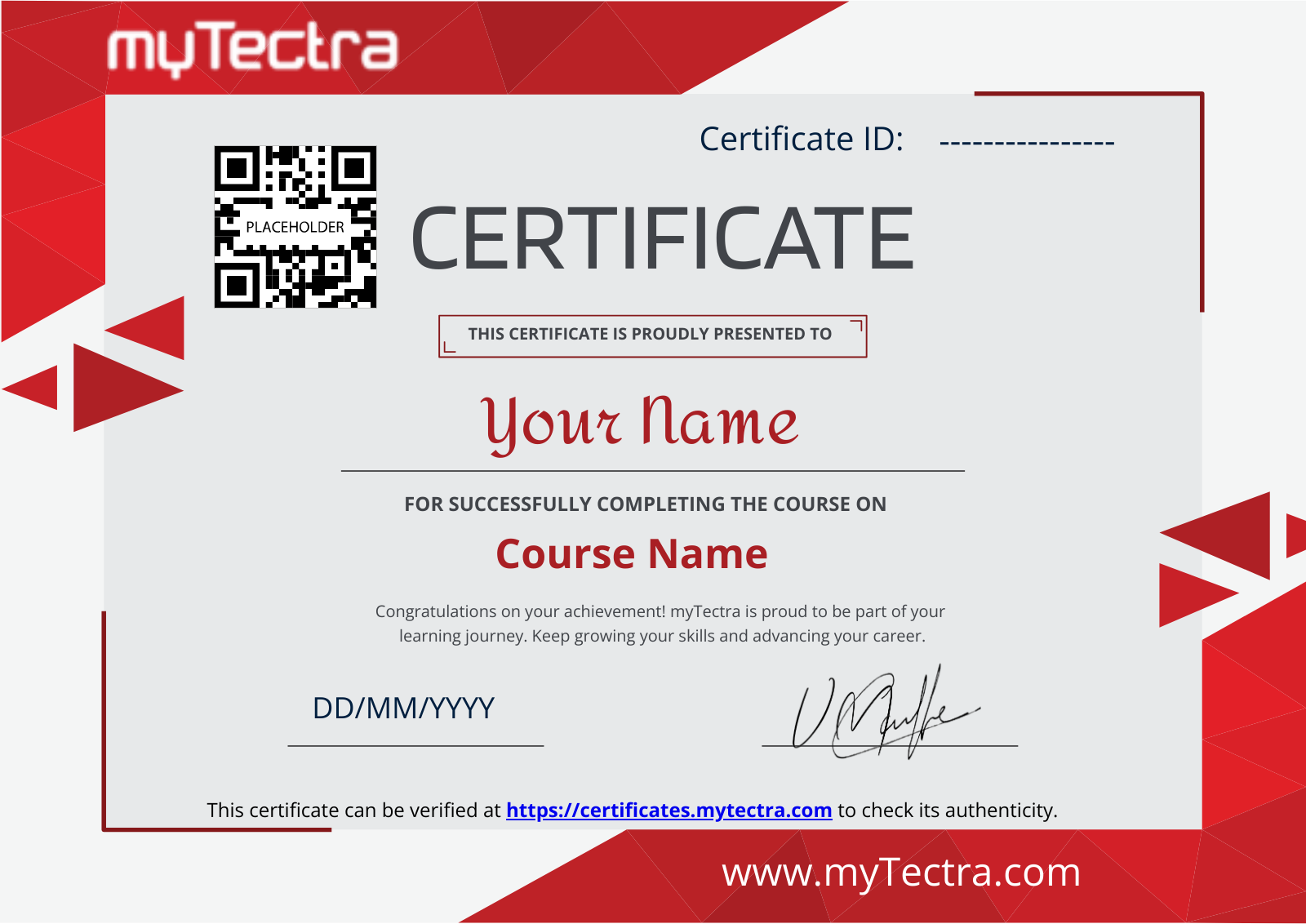
Certification
After completing the course and project, you will receive a recognized certification that validates your expertise and enhances your professional credentials in your chosen field.
Career Support
Access career support services after certification, including resume workshops, interview preparation, and job placement assistance. These resources equip you with the tools needed to transition successfully into the workforce.
Clients Testimonials
Hear what our students say about myTectra
Hear from Our Successful Learners!
Discover how myTectra transformed their careers—your success story could be next!
Course Features
Expert Trainers
Courses are delivered by experienced working professionals and subject matter experts with real-world experience.
Hands-On Training
We provide learners with practical experience through real-world scenarios, projects, and interactive exercises.
Customizable Corporate Training
Tailored training solutions designed to meet the specific needs of organizations and teams.
Certifications & Assistance
Certifications offered by myTectra align with international standards and we also help you to prepare for globally recognized certifications.
Global Recognition
Trusted by individuals and enterprises worldwide, with a track record of successful alumni and partnerships.
24 x 7 Expert Support
We have a 24x7 online support team to resolve all your technical queries, through a ticket-based tracking system, for a lifetime.
Gain prestigious credentials and recognition
Start Learning Today. Access Your Resources for a Lifetime!
Enjoy lifetime access to myTectra’s Learning Management System (LMS), including session recordings, study materials, and resources. This ensures continuous learning and easy reference to course content even after completion.
Resume Preparation Made Professional and Impactful
Get expert guidance in crafting a professional and impactful resume. myTectra’s resume-building support helps highlight your strengths, certifications, and skills effectively, increasing your chances of landing your dream job.
Prepare for Success with Expert Mock Interviews
Prepare for real-world interviews with personalized mock interview sessions conducted by industry experts. Receive feedback on your performance, learn key interview techniques, and gain the confidence to succeed in job interviews.
FAQs
Would you like to reach us for the training for your team? Please fill the below form. We will get back to as soon as possible.
myTectra is providing 100% placement assistance on our key courses. We help you with the career counselling, Exams on Key courses, Mock Interviews and Technical Interviews Tips.
Landing an interview proves that you have the job-specific skills for the position, but how do your interview skills stack up? Also, Soft skills are often the most important factor in showing you're the best candidate for the job.
Hence we are conducting FREE TRAINING on Soft-Skills worth Rs-25, 000 to all myTectra students which will help you to attend the interviews with more confidence.
You will never miss a lecture at myTectra. You can choose either of the two options:
Classroom Training:
- If you miss one or few classes we can give a backup class based on trainer and your convenient time.
- In case if you miss many classes, we can reschedule your class with upcoming batches or other running batches based on how many courses topics you have completed so far.
Live-Online Training:
- View the recorded session of the class available in your LMS.
- You can attend the missed session, in any other live batch.
Yes. We arrange a free demo for all the courses either in the Classroom or Live-Online demo. Please fill the demo request form below to schedule a free demo.
Just give us a CALL at +918047112411 OR email at support@mytectra.com
- Visa Debit/Credit Card
- American Express and Diners Club Card
- Master Card
- PayPal
- Net Banking/Wire Transfer
- UPI Payment such as Google Pay, PhonePe, Paytm
- Cash/Cheque/DD ( Not for Online Training )
For Individual:
Classroom Training - Bangalore
Live-Online Training - Globally
For Corporates:
Classroom Training - We deliver classroom training for corporate in more than 20 countries. Send us an Enquiry Now!
Online Training - Globally
* All of the classes are conducted live online. They are interactive sessions that enable you to ask questions and participate in discussions during class time. We do, however, provide recordings of each session you attend for your future reference.
Our Trainer’s are chosen not only for their knowledge and expertise but also for their real-time experience in the respective courses.
Achieve Design Excellence with myTectra’s Adobe Illustrator Certification!
Related Programs
Career Services
Placement Assistance
Exclusive access to myTectra Job portal
Mock Interview Preparation
Resume & LinkedIn Profile Building
Access to Soft Skill Enhancement
One-on-one career guidance

Related Blogs
Explore Tips, Tutorials, and Insights to Master Adobe Illustrator

From Novice to Pro: Navigating Adobe Illustrator Training Successfully

Becoming a Design Pro: Your Path through Adobe Illustrator Training

Everything You Need To Know About Adobe Illustrator Training

Find Adobe Illustrator Course in Other Cities
Adobe Illustrator Training in Bangalore
Yes, myTectra offers Classroom Training in Bangalore on Adobe Illustrator and Live-Online Training globally.
Adobe Illustrator Online Training
Yes, myTectra offers Live Online Training on Adobe Illustrator globally.
Adobe Illustrator Training in Marathahalli
Yes, myTectra offers Classroom Training in Marathahalli - Bangalore on Adobe Illustrator and Live-Online Training globally.
Best Adobe Illustrator Institute in Bangalore
Yes, myTectra offers Classroom Training in Bangalore on Adobe Illustrator and Live-Online Training globally.
Adobe Illustrator Training in BTM
Yes, myTectra offers Classroom Training in BTM Layout 2nd Stage - Bangalore on Adobe Illustrator and Live-Online Training globally.
Professional Adobe Illustrator Training with Certification
Yes, myTectra offers Professional Adobe Illustrator Training in Bangalore with certification, along with Live-Online Training globally, equipping you with real-world design and illustration skills.